CCC TechConnect manages all Zoom accounts for California Community Colleges, including Hartnell College. As Zoom usage continues to grow, the storage capacity for Zoom cloud recordings is quickly filling up.
To manage this limited space and ensure continued service, CCC TechConnect has implemented a new statewide Zoom Recordings and Transcripts Retention Policy.
Starting October 2, 2025, older Zoom recordings will begin to be automatically deleted according to a set schedule. Faculty and staff must take steps to preserve any important recordings before they are permanently removed from Zoom cloud storage.
Read on to learn about the key dates, what actions you need to take now, and options for long-term storage for your Zoom recordings and transcripts.
effective october 2, 2025
Deletion Procedure and Schedule
Key Dates to Know
30-Day Grace Period
After 30 days in the trash, Zoom will automatically and permanently expunge a recording/transcript.
- During this 30-day grace period, users may recover a deleted recording/transcript.
- Once recovered, the recording/transcript must be promptly moved to local storage or another designated location within one week to ensure its retention.
What to Do now
Manage Your Recordings
In order to preserve any of your existing recordings, we recommend taking the following steps.
When recording your Zoom meetings to the cloud, you are utilizing a communal storage space. Please save only the recordings you need.
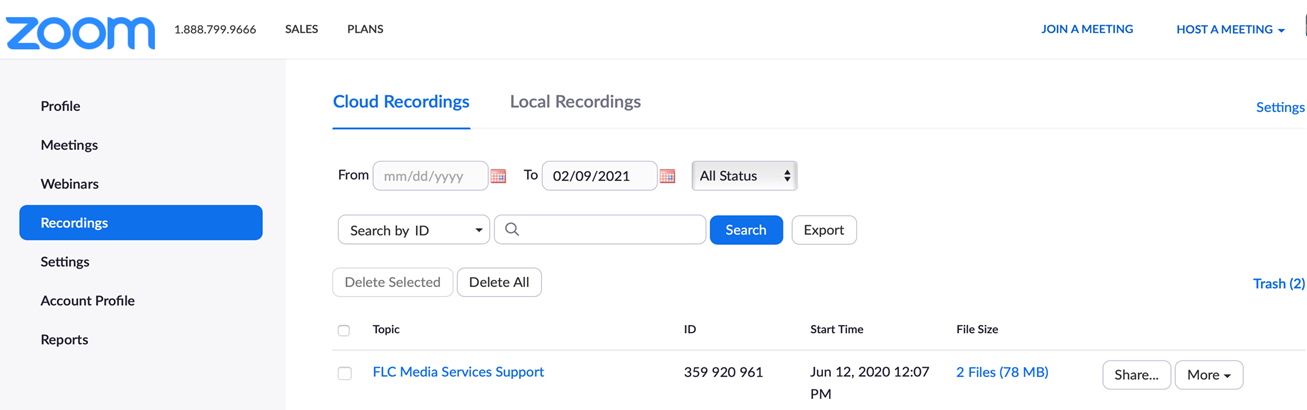
- Log into your Zoom account from a web browser.
- Click on “Recordings & Transcripts” from the left menu. Here you will see a list of
all your recordings with details for each.
-
Under the “Cloud Recordings” heading, decide which recordings you would like to keep and which ones should be deleted. You can review a recording by clicking on the title and then clicking on the play button.
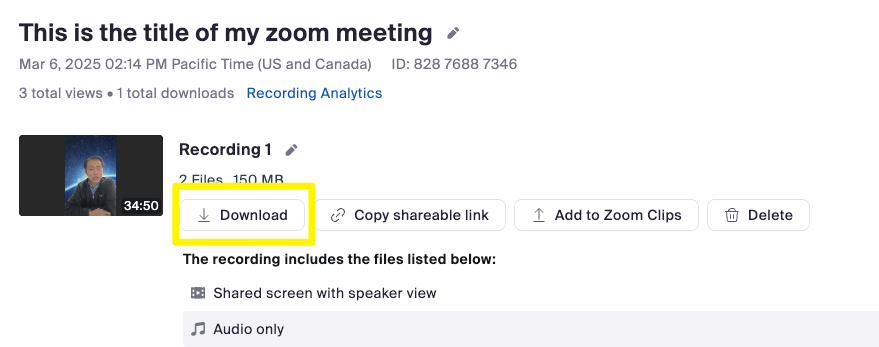
- Download meetings you would like to keep:
- Click the meeting topic/title.
- On the recording’s page, click Download on the desired recording.
A confirmation prompt will appear. - Click Download to confirm.
We recommend storing your recordings in permanent cloud storage so that you can continue to share them.
- Note: If you have no desire to share the files with anyone in the near future, you can simply store them on your computer or an external drive.
Box
We recommend using Box as your cloud storage for Zoom recordings:
- Secure, cloud-based and FERPA-compliant.
- Easily shareable with your students and colleagues.
- Integrated with Duo.
- Box App for Zoom allows you to seamlessly save future Zoom meeting recordings into the "My Zoom Recordings" folder in Box.
Additional Options
- 3CMedia
- You can create a free 3CMedia account and upload your videos there. An added benefit of using 3CMedia is that it integrates with Canvas and PlayPosit. Make sure to use your primary Canvas email address when creating your 3CMedia account, so that it will sync with Canvas. If you choose this option, be sure to download the audio transcript file(s) from your Zoom recordings so that you can upload to 3CMedia.
- Canvas Studio
- You can upload the Zoom recordings to Canvas Studio and request auto captioning from within Studio. You can then integrate your videos into assignment, pages, etc.
- YouTube
- You can create a YouTube channel and upload your videos there (along with audio transcripts). Just make sure to verify your account so that you can upload videos longer than 15 minutes in length. YouTube also integrates with Canvas and PlayPosit.
Not sure which to us? Use this chart for an overview of each option.
| Box | Canvas Studio | 3C Media | YouTube | |
|---|---|---|---|---|
| File Formats | Standard Formats (MP3, MP4, WMV etc) | Standard Formats (MP3, MP4, WMV etc) | Standard Formats (MP3, MP4, WMV etc) | Standard Formats (MP3, MP4, WMV etc) |
| Download Restrictions | Yes | Yes | Yes | No |
| Auto Captions | Yes | Yes | Grant Funded | Yes |
| Create captions and edits | Yes | Yes | Yes | Yes |
| File Upload Size Limits | 10 GB | 1 GB | 256 GB or 12 Hrs | |
| Total Storage Limit | None at this time | None at this time | None | |
| Canvas Integration | Yes | Yes | Yes | Yes |
Need Help?
ITR will be hosting trainings to help you prepare for the transition! Check back for a training calendar.
Trainings
Hybrid trainings will be held in Room A116 with Zoom links provided. Please check the schedule and choose a date that's most convenient for you, keeping in mind that the number and length of recorded Zoom videos may require more time for the backing up of files due to download and upload speeds when storing or sending files.
Dates
May 13, 2025 - 2:00pm
May 15, 2025 - 10:00am
June 24, 2025 - 10:00am
June 26, 2025 - 2:00pm
July 8, 2025 - 9:00am
July 10, 2025 - 3:00pm
July 29, 2025 - 11:00am
August 4, 2025 - 9:00am
August 6, 2025 - 2:00pm
August 18, 2025 - 2:00pm
August 20, 2025 - 10:00am
September 8, 2025 - 2:00pm
September 10, 2025 - 10:00am
September 25, 2025 - 3:00pm
September 30, 2025 - 3:00pm